
Why Didn't My Bet Match? Market vs. Limit Orders on BettorEdge
On BettorEdge every bet needs another bettor on the other side. Here's why an order sits unmatched, the difference between market and limit orders, and how to fill, move or cancel a working order.
Before you start
- •There's no house on BettorEdge. Your bet matches only when another bettor takes the other side at a compatible price.
- •An order that hasn't matched yet is a working order. No money is lost if it never matches: the unmatched amount goes back to your balance.
Prerequisites
- •A BettorEdge account with an order to place or one that's working.
- 1
Open the order book for the market
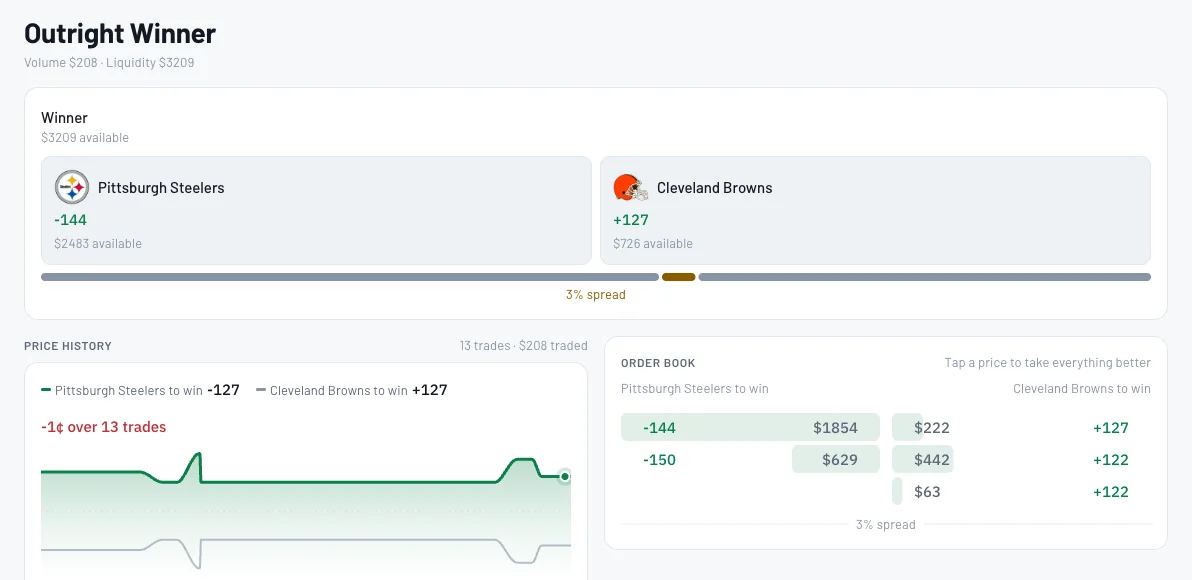
On a game, tap Order book under the spread, moneyline or total. The order book lists the prices other bettors are offering on each side and how much is available at each. Tap a price to take everything at that price or better.
- 2
A market order takes the best price on the board now
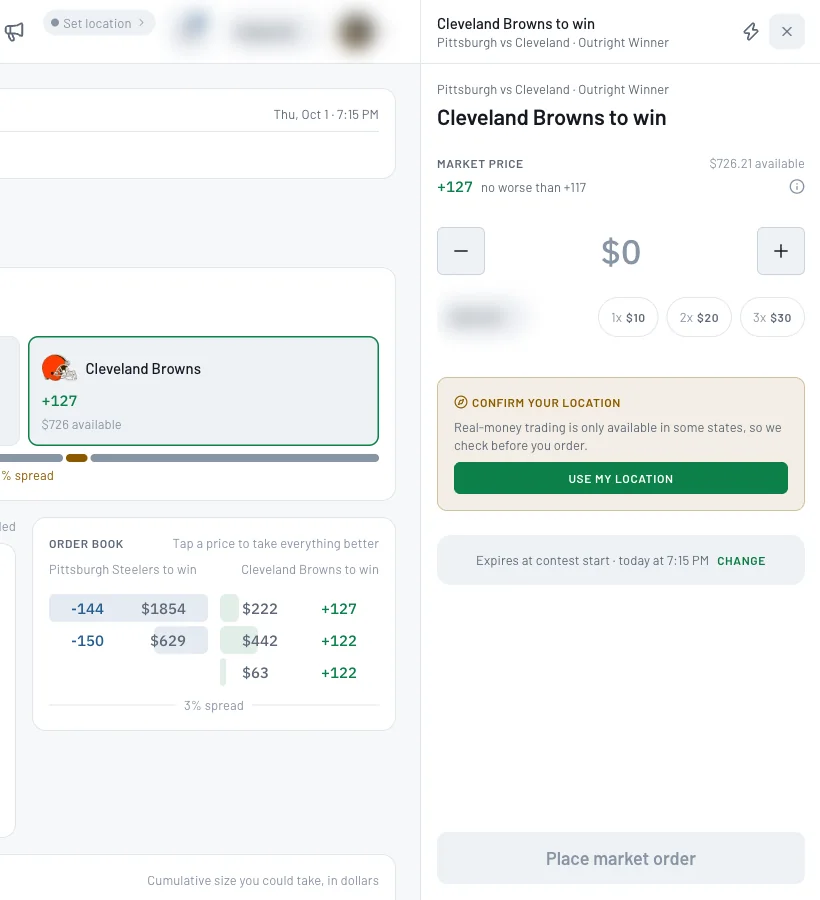
Tap a side to open the order ticket. A market order fills right away against what's on the board, never worse than the 'no worse than' price shown under the market price. It only matches if there's enough on the other side.
- 3
Switch order type to name your own price
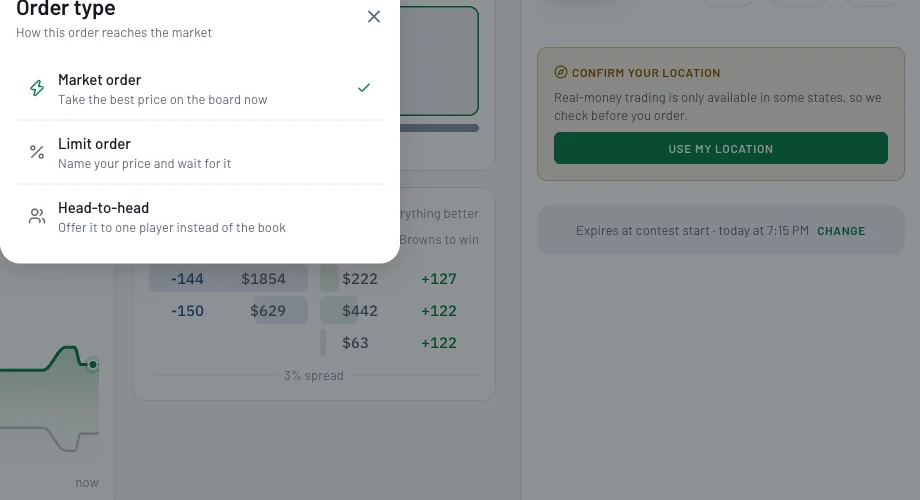
Tap the order-type icon on the ticket. Market order takes the best price on the board now; Limit order lets you name your price and wait for it; Head-to-head offers it to one player instead of the book.
- 4
A limit order waits until someone takes your price
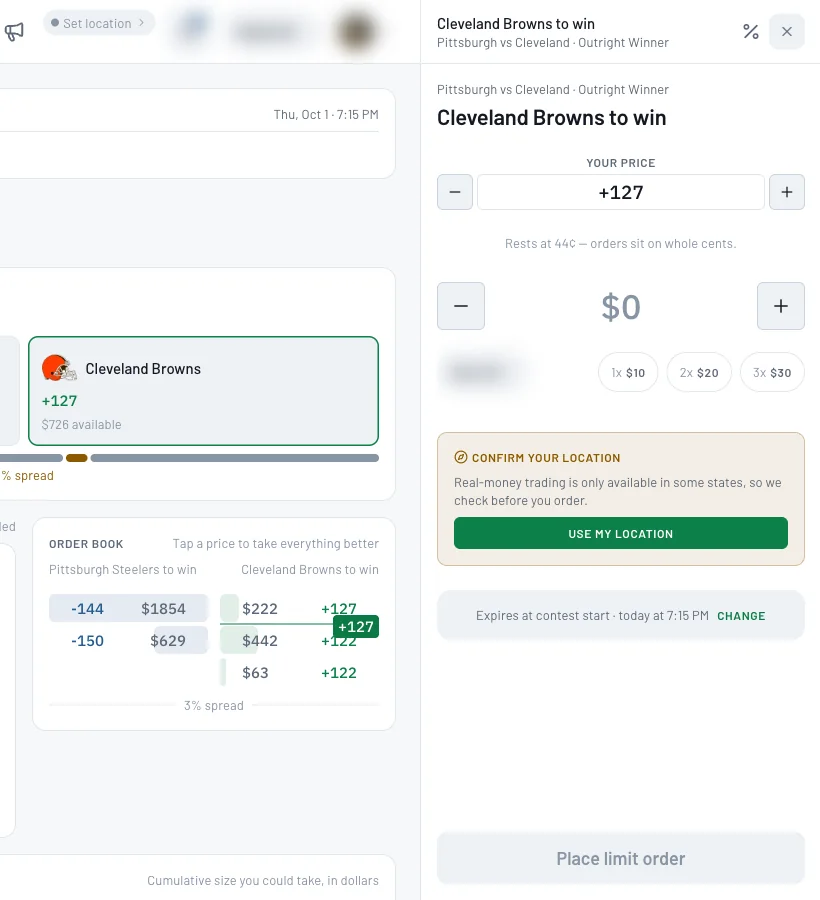
Set Your price with the + and − buttons (orders sit on whole cents) and your amount. If nobody wants the other side at your price yet, your order sits on the board as a working order. This is the most common reason a bet doesn't match.
- 5
Choose how long the order stays up
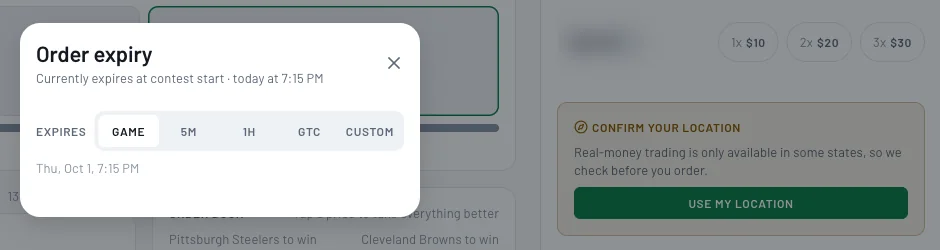
Tap Change next to the expiry. Pick Game (contest start), 5 minutes, 1 hour, GTC or a custom time. When an order expires, any unmatched amount goes back to your balance.
- 6
Find your working order in Portfolio
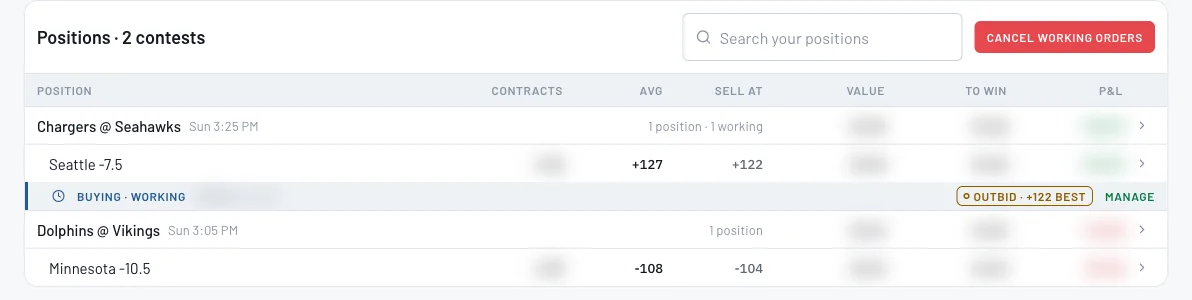
Open Portfolio. A working order shows under its position, for example Buying · Working, with a tag when you've been outbid and what the best price is now. Cancel working orders at the top cancels all of them at once.
- 7
Fill now, jump the line, or cancel
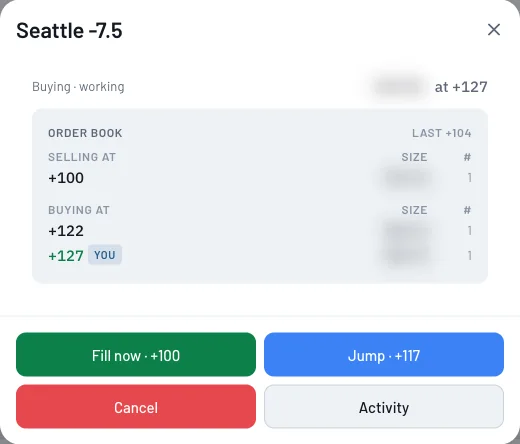
Tap Manage on the working order. Fill now takes the best price on the board right away. Jump re-prices your order to the front of the line. Cancel pulls it and returns the unmatched amount. Activity shows its history.
- 8
Set your defaults in Trading preferences
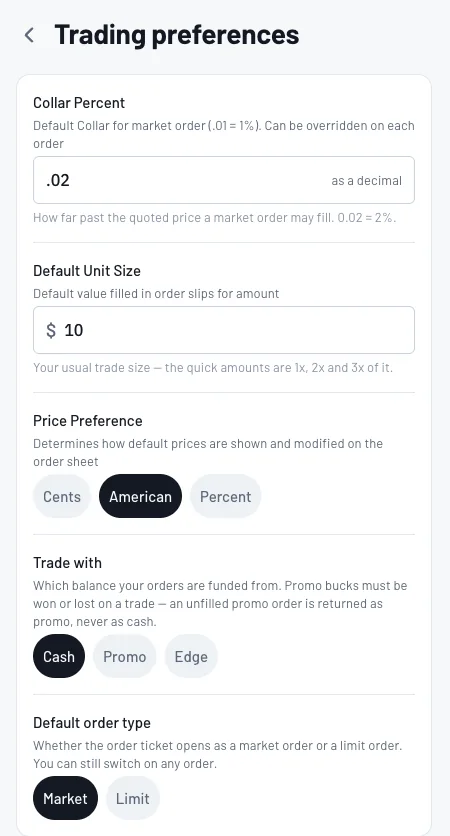
In Account → Trading, set your default order type (Market or Limit), your collar (how far past the quoted price a market order may fill), your unit size, and whether prices show in cents, American odds or percent.
Tips
- •Want it now? Use a market order. Want your number? Use a limit order and be patient.
- •The order book shows every price other bettors are offering. Tapping a price takes everything at that price or better.
- •A market order shows a 'no worse than' price: it won't fill past that. Your Trading preferences set how far that can be.
Questions
Do I lose money if my order doesn't match?+
No. A working order only uses money when it fills. If it expires or you cancel it, the unmatched amount goes back to your balance.
Can an order partly fill?+
Yes. If only some of your amount is matched, that part becomes a position and the rest keeps working until it fills, expires or you cancel it.
What's the difference between a market order and a limit order?+
A market order takes the best price on the board now. A limit order names your price and waits for someone to take it.
Can I cancel an open order?+
Yes. Tap Manage on the order in Portfolio and choose Cancel, or use Cancel working orders to cancel them all.
Expected outcome
You know why your order didn't fill, which order type to use next time, and how to fill, re-price or cancel a working order.
Try it on BettorEdge.
Create your account and follow along in the app. Sign up for a shot at up to $100. No deposit needed.